

Users and Licenses
Introduction
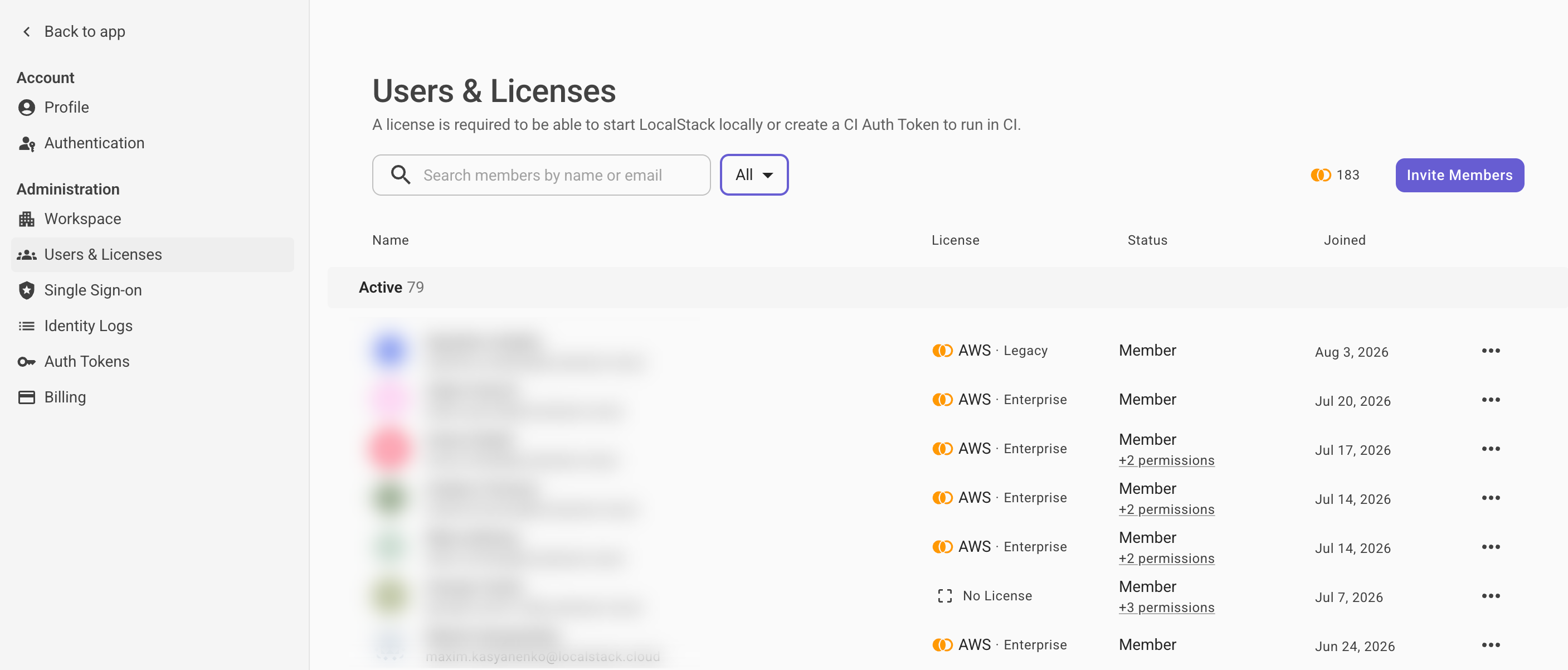
Section titled “Introduction”The Users & Licenses page in the LocalStack Web Application allows workspace administrators to manage workspace memberships and assign licenses.
To access this page:
- Click your name or organization’s name in the top-left corner of the dashboard.
- Go to Settings → Users & Licenses under the Administration section.
Member Roles
Section titled “Member Roles”Each member of a workspace is either a Workspace Admin or a Workspace Member. The role determines which parts of the workspace they can access and manage.
The table below summarizes what each role can do:
| Action | Workspace Admin | Workspace Member |
|---|---|---|
| Invite new members | ✅ | ❌ |
| Remove members from workspace | ✅ | ❌ |
| Assign or unassign licenses | ✅ | ❌ |
| Change member roles (e.g., promote to Admin) | ✅ | ❌ |
| Configure advanced permissions | ✅ | ❌ |
| Access Auth Tokens | ✅ | ✅ |
| Use assigned LocalStack licenses | ✅ | ✅ |
Key differences
Section titled “Key differences”- Administrative control: Only Admins can open the Administration section of Settings to manage workspace membership and the license pool.
- License management: Admins distribute available licenses from the subscription plan to specific members through the Users & Licenses dashboard.
- Role management: Admins can switch any member between Admin and Member.
Managing Members
Section titled “Managing Members”Inviting Members
Section titled “Inviting Members”To invite someone to your workspace:
- Click Invite Members.
- Enter the email of the person you want to invite.
- Check the option to automatically assign a license (optional).
- Send the invite.
If the invitee does not have a LocalStack account, they will receive an email to create one.
Removing Members
Section titled “Removing Members”To remove a member from the workspace:
- Click the ⋯ menu at the right of their row.
- Select the option to remove them from the workspace.
You can re-invite them anytime.
Managing Roles and Permissions
Section titled “Managing Roles and Permissions”Use the ⋯ menu at the right of a member’s row to view and edit their role.
- Set them as Admin or Member
- Configure advanced permissions if available
Managing Licenses
Section titled “Managing Licenses”Licenses are part of subscription plans and are shown in the License column of the members list.
- To assign or change a license: Click directly on the license name for a member to open the license dropdown.
- To unassign a license: Select the no-license option from the same dropdown.
- A license can be reassigned at any time.
Changes apply immediately and don’t require user action.